
StoryScript Blog
This blog will keep you updated on new StoryScript developments and share tips & tricks on how to make things work with the tool.
-
Animations in StoryScript
Sunday, October 11, 2026Although StoryScript has never focused on the visuals of computer games, the capabilities it has for working with images been increasing. When StoryScript started over 10 years ago, you could work with images by just including them in your HTML files. Later, image maps were added for creating visual adventure games, and after that the option to display images for features on top of image maps. Until now, these images have been static (apart from using .gif images, of course). But now, you also have the option to add simple animations using just a sprite sheet.
To illustrate the concept, I've enriched the Visual Adventure Game demo with a pulsating light shown just above the fountain. This healing light is an item used as a feature. Check out the tutorial on visual adventure games to learn more about using features in a visual way. The difference between it and the herbs item found in the second location is that the healing light item has an animation instead of a picture:
export function HealingLight() {
	return Item({
		name: 'Healing light',
		animation: {
			sheet: 'candlelight_anim.png',
			height: 48,
			width: 48,
			steps: 6,
			speed: 1,
		},
		equipmentType: EquipmentType.Miscellaneous,
		interactive: false
	});
}
This is the sprite sheet used:

As you see, apart from the sprite sheet you need to specify the dimensions of a single sprite, the total sprites present and the animation speed. The engine uses this to display the sprites one after another, creating a moving image. I plan to add more options to this feature so you can also trigger the animation yourself. With that, you can randomize when the animation plays to for example have leaves moving in the wind. Simple additions, but they do a lot to make your world seem more alive.
Finally, note that there is a new flag available for features, interactive. I added it to be able to add animated decorations as features but without being able to interact with them. Thus, unlike the other features in the demo, nothing happens when you hover over or click on the healing light. Of course, you can also use this flag to change the interactivity of a feature in your world if you come up with a use case for that.
-
StoryScript games as Progressive Web Apps
Sunday, October 11, 2026Progressive Web Apps (PWAs) have been around for some time now. This technology allows a user to install a web app on a device and amongst other things use the app when not connected to the Internet when it has been made with offline support. PWAs are fully supported by all Chromium-based browsers (such as Chrome and Edge), other browsers offer more limited support. You can find an overview of the level of PWA support by browsers here.
For StoryScript a PWA offers two main benefits:
- Show the game full screen without a browser UI, making the game feel more native to the device.
- Allow playing the game when offline or when the website offering the game is unreachable.
Today, I added PWA support for StoryScript. It will be available automatically when you create a new game using the create game command:
npm run create-game YourGameNameYou'll find a new folder in your game's directory, called webroot. This folder contains four files, the gameinfo.json that used to be in the game's root directory and three files to display the logo for your game when installed on a device and in the PWA top bar: logo512.png, logo192.png and favicon.ico. The latter file is also shown in the browser's address bar.
When you already have a game, you can update it in two steps:
- Copy over the webroot folder from the _GameTemplate folder to your own game's folder.
- Move the gameinfo.json file from your game's folder to the new webroot subfolder, replacing the one in there.
You'll want to replace the logo files to users see your game's own logo and not the default StoryScript one.
Now that your game is ready to be installed as a PWA, here's how you do it in Chrome. First find the Install page as app... menu option:
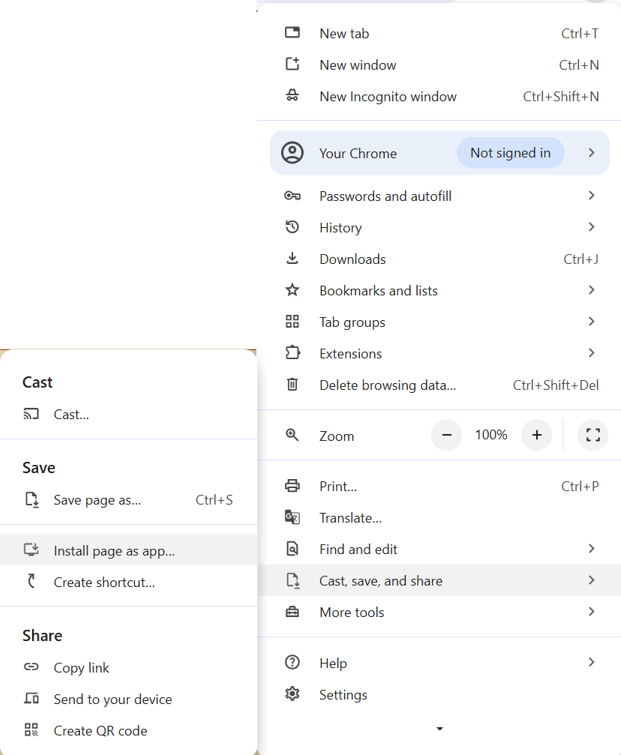
Second, choose a name for the app:
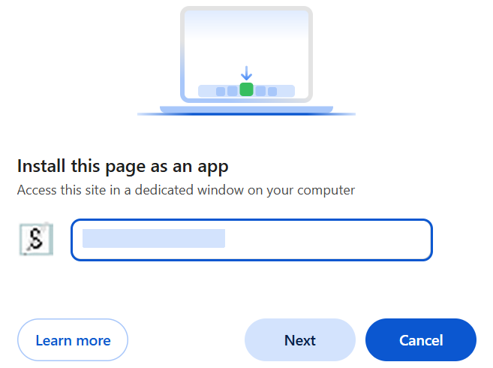
Press next and complete any additional options you might be presented with.
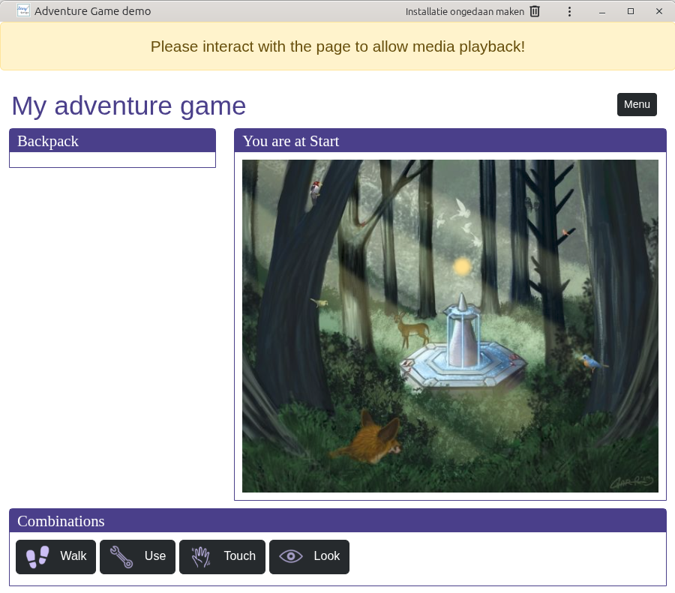
When the app is installed, you have the option to open it in a tab. Do so. You can see that your game's interface is much cleaner now:
Before After 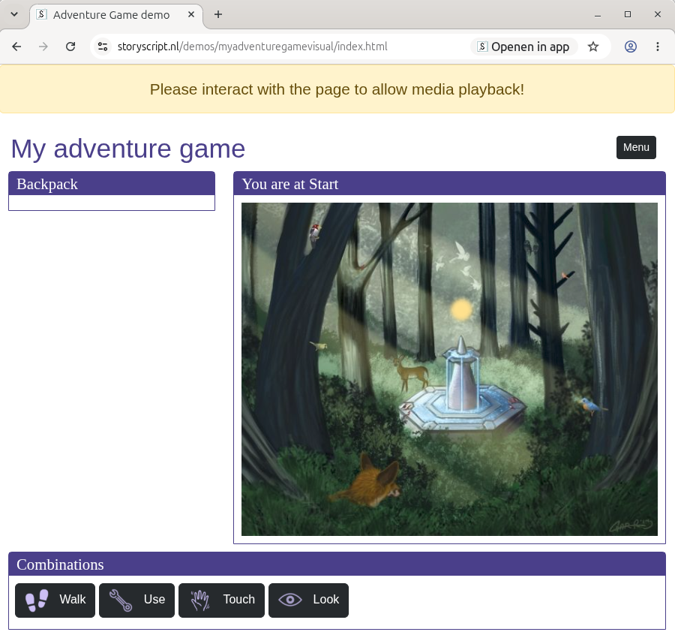
Also, when you now turn off your internet connection and reload your game (you can do that by clicking on the icon at the top right and choosing reload page), it should work as usual!
-
Chromium-bug crashes Chromium browsers on Visual Adventure Game
Friday, October 9, 2026I found and reported that the latest versions of Chromium-based browsers crash when hovering over a feature in StoryScript's Visual Adventure Game! This is a Chromium regression bug, not a bug in StoryScript. It was assigned the highest priority, 0, for fixing. Which means it should be fixed in the next version of Chromium and released soon.
Not a good thing to find that your application crashes with nothing you can do about it, but happy that StoryScript is considered important enough to be assigned a priority 0 😆!
-
StoryScript's 10th anniversary
Tuesday, June 2, 2026On May 27th 2016 I moved StoryScript to Github. looking at the code I committed back then, I had been working on it for a while already. So while the exact date of birth of StoryScript is uncertain, it's first publication on GitHub seems like as good an event as any to use as it's official date of birth. So happy birthday to StoryScript!
I don't think much of the original code of StoryScript is left. So much has changed in 10 years. I added many new ideas and concepts to the engine, reworking it to integrate them all as much as possible. Apart from hypertext stories, you can now use it to build a variety of game types using a variety of entities and assets. And the UI has been rewritten three times. Starting out with AngularJS, I rebuild it first in Angular and recently in VueJs. Last but not least, the documentation had to keep up with all of these changes. Starting out with a PDF document, all documentation is now available online on this website.
As it is now, StoryScript should be a great tool for creating story-based games, digital presentations and more. I feel like all of these years of work have come to fruition. My wish for StoryScript's future is that many people may discover it and put it to use to write their stories.
-
Responsive StoryScript and improved touch support
Friday, May 15, 2026Over the last weeks I worked on improving StoryScript's responsiveness, so StoryScript games will look good on all devices. For the more text-heavy example games that was relatively easy as I could use Bootstrap's responsive framework to change the layout a bit when needed and media queries for the rest. The map functionality was already there, as the portion of the map you can see depends on the maximum of either your device's viewport or the maximum set by the game designer (setting a max-height using the map-container class).
The challenge was the visual adventure game, as it uses a picture for a location that should be shown in it's entirety and can have other pictures on top of it for features that can be removed (the herbs). That meant repositioning not only the feature pictures, but also recalculating all clickable feature ares. On top of that, as it was quite unclear what a user should do in the game when using a touch device, we wanted to add symbols to all areas to show that they could be tried with the combination selected by the player.
Using the image load events and storing the original sizes, I was able to calculate the factor to use to scale and apply that to the features, areas and symbols. Monika got me some nice symbols to use, so while I was at it I also improved the experience for mouse users by showing the symbols as custom cursors when hovering over feature areas and I added them to the combination action's buttons.
The result works great and looks very nice. Check out the demo! I updated the tutorial on visual adventuring to show how to add your own symbols. It's very easy. Another great improvement for StoryScript!